

Identify the issue first
Support on jiliga.me separates page-loading problems, sign-in questions and download-source checks. Note what you expected to happen and what actually appeared. A short, precise description is more useful than repeated attempts without a record.
Page not loading
Check whether other sites open on the same connection. Refresh once, close duplicate tabs and try a current browser. If the issue affects only one destination, keep its address and the time of the problem. Optional connection software does not change access eligibility.
Account or installation issue
Use account recovery at the service holding your account. For software installation, check the publisher and source before trying again. Do not post passwords, verification codes or complete identity documents in social channels.
How to ask for help
Include the page address, device, browser and a description of the error. Redact private details from screenshots. The Contact section on jiliga.me lists the currently configured social links; response times and account support capabilities are not guaranteed.
iOS connection tutorial
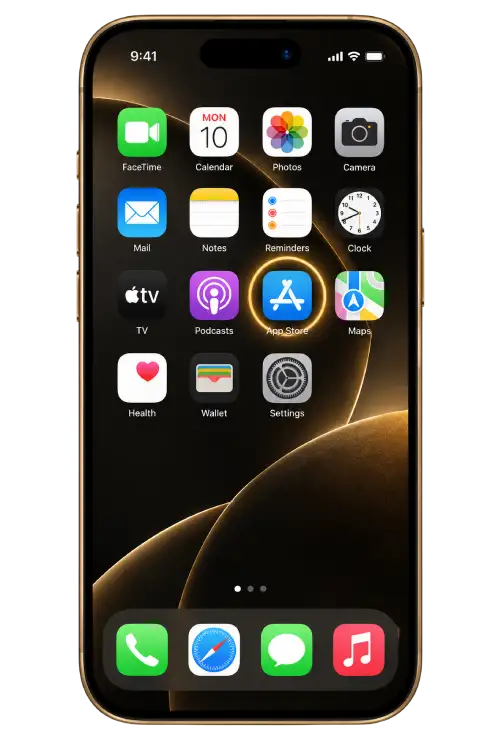
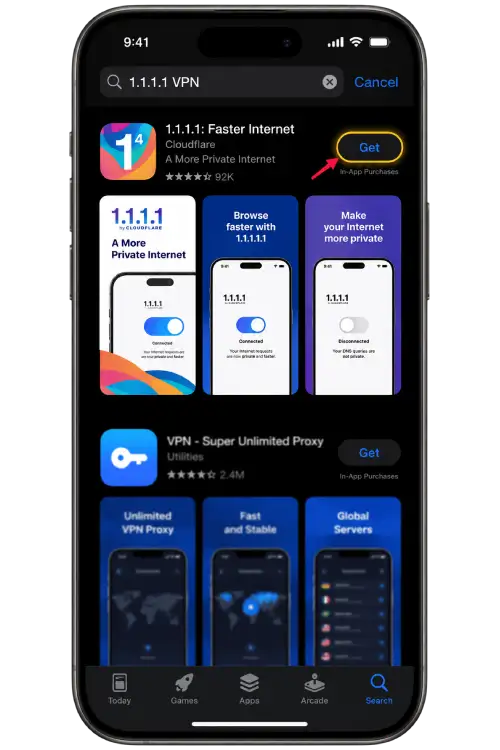
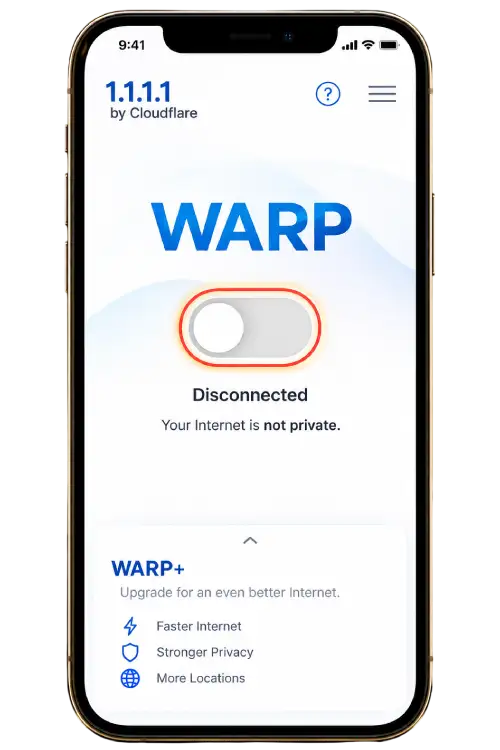
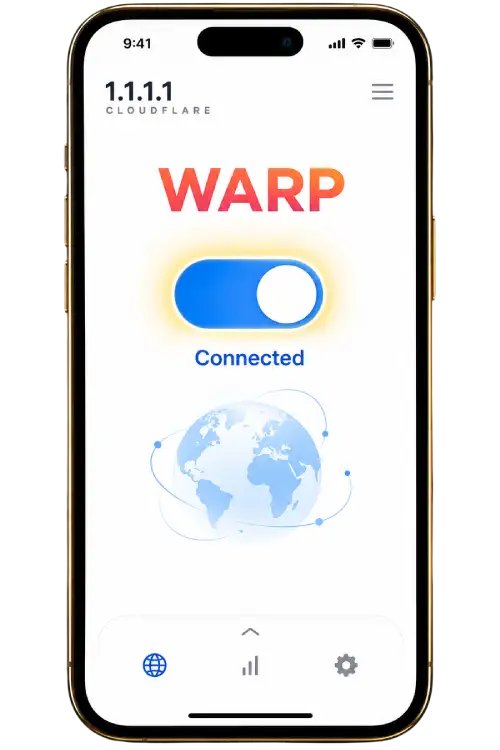
App screens may vary by version. Use the publisher’s current prompts if they differ from these reference images.
Android connection tutorial
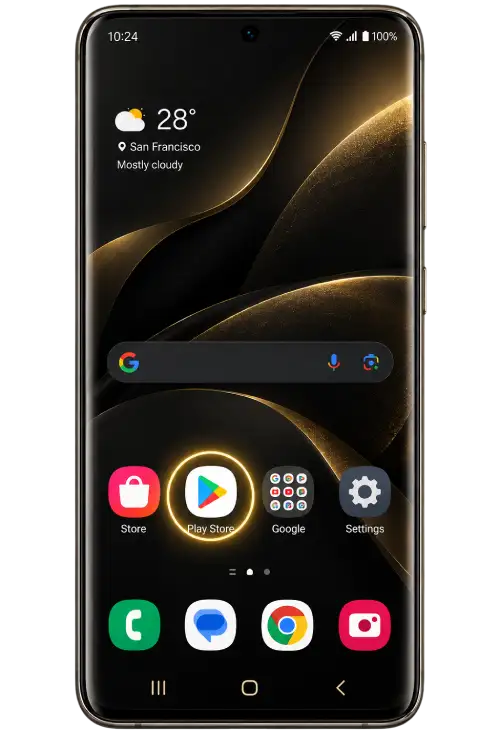
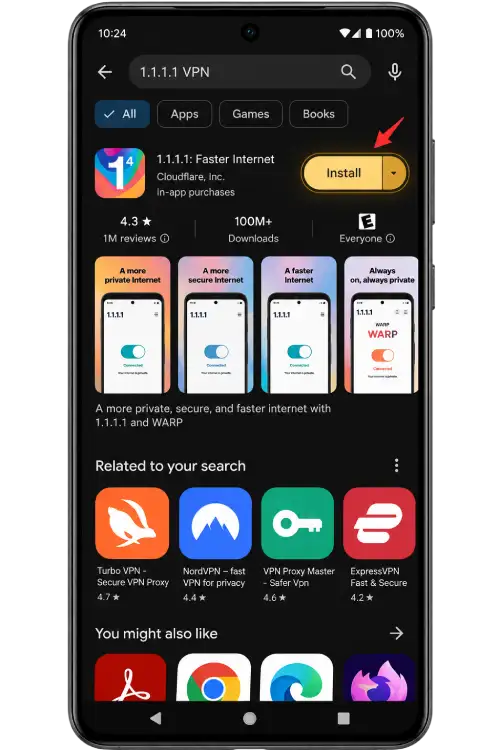
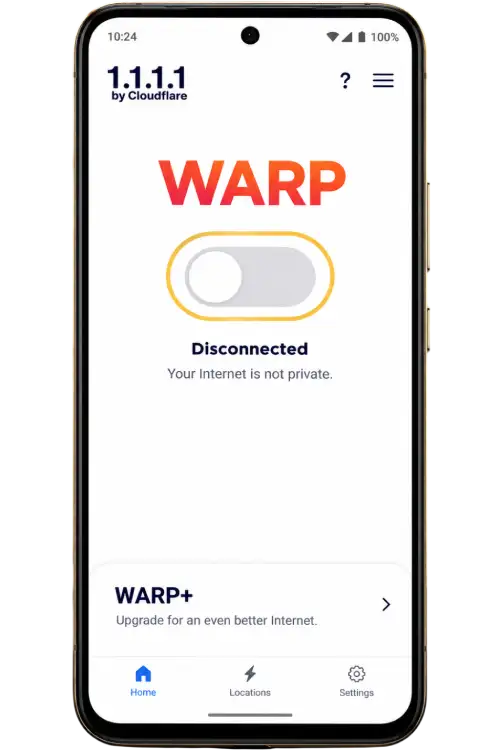
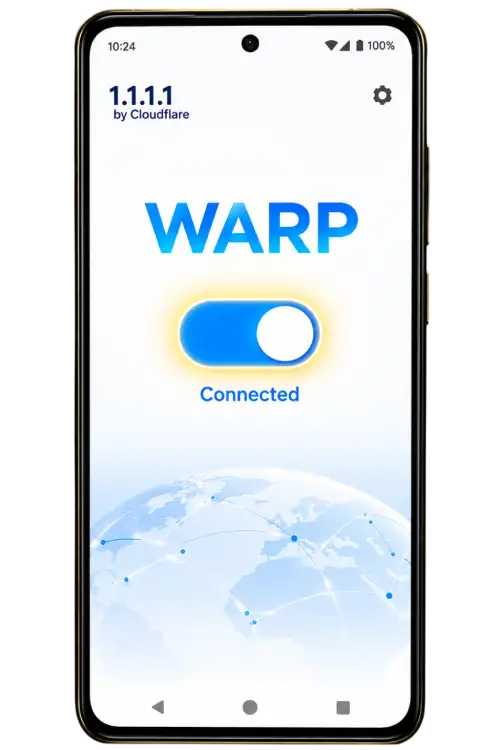
App screens may vary by version. Use the publisher’s current prompts if they differ from these reference images.
Use a concise issue report
- Page
- Copy the address of the page that showed the problem.
- Environment
- Name your phone or computer, operating system and browser.
- Observed result
- Describe the exact message and approximate time.
- Steps already tried
- List only the checks you actually performed.
- Privacy
- Remove passwords, codes and private account details from any screenshot.